How To Use the Code Formatter: Beautify, Minify, and Clean Code Without Sending It Anywhere
Learn how to format or minify code, choose the right language, upload files, copy output, and avoid common mistakes when cleaning code.
In This Article
Pick Format or Minify Based on the Job
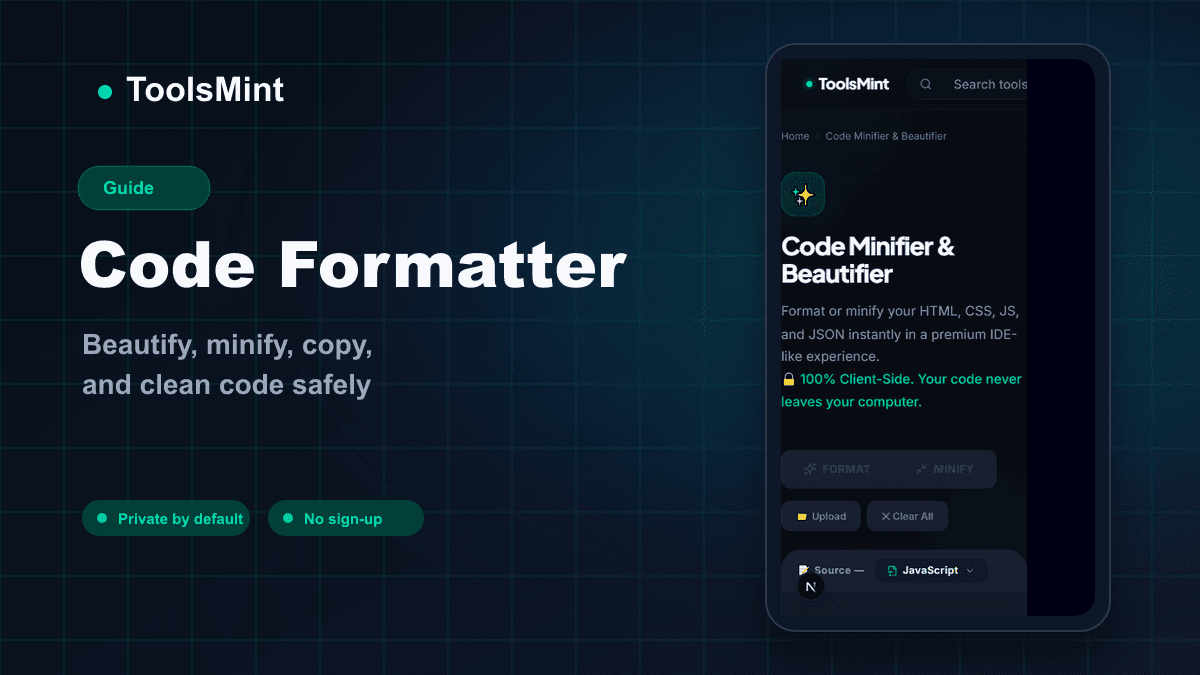
Open Code Formatter and choose Format when you want code to be readable. Choose Minify when you want code to be smaller for production or quick sharing.
Formatting adds structure: indentation, line breaks, and spacing. Minifying removes extra whitespace and comments where safe. These are opposite tasks, so ToolsMint puts them as clear modes instead of burying minify under a random checkbox.
If you are debugging, reviewing, learning, or pasting into documentation, use Format. If you are preparing a compact snippet or comparing bundle output, use Minify.
Select the Language Before You Paste
Choose JavaScript, HTML, CSS, JSON, or the matching language option before pasting your code. The same characters can mean different things in different languages, so choosing the language helps the formatter avoid weird output.
ToolsMint designed the source panel like a small editor because code needs space and rhythm. A normal textarea is okay for one line, but real code needs a layout that feels closer to the tools developers already use.
If your code is mixed, format the most important layer first. For example, format HTML as HTML, then separately format a script block as JavaScript if needed.
Use Upload for Files, Paste for Snippets
For a quick snippet, paste directly into the source box. For a full file, use Upload so you do not accidentally miss the top or bottom of the file while copying from another editor.
After formatting, scan the output before copying. A formatter improves structure, but it cannot know whether your code is logically correct. If a missing bracket or invalid JSON exists, fix the source first.
This is where ToolsMint works well with Diff Checker. Format the old code and new code in the same style, then compare them. Clean formatting makes real changes easier to see.
Keep Private Code Private
A lot of code snippets contain secrets by accident: API keys, internal URLs, database names, customer IDs, tokens, or comments with private context. That is why client-side formatting matters.
ToolsMint keeps this tool browser-based so your pasted code does not need to be uploaded just to add indentation. For open-source snippets, that may not matter much. For work code, unreleased features, logs, or credentials, it matters a lot.
Still, use good habits. Remove secrets before pasting anything into any web tool, even one designed for local processing. Privacy-first design helps, but careful input is still your responsibility.
Copy the Output Into the Right Workflow
Once the code looks right, copy it back to your editor, documentation, CMS, or issue tracker. For production code, run your normal formatter and tests afterward. ToolsMint is great for quick cleanup, but your repo's configured formatter remains the final authority inside a team project.
The tool exists because not every formatting job should require opening an IDE, installing extensions, or sending code to an online backend. It is for the quick middle moments: fixing a messy snippet, reading minified code, preparing an answer, or making a diff easier to review.
That is the practical difference: fast enough for everyday cleanup, private enough for work snippets, and simple enough that non-developers can format JSON or HTML without learning a full editor.